Configuration
Each web part is configured through its settings panel. To open it, click the web part while editing the page and click the pencil (edit) icon.
Every web part's settings panel also includes a collapsed About group at the bottom, with a link to this documentation page and the current solution version. It isn't repeated in the sections below.
1. Welcome Banner
Welcome Banner
The Welcome Banner sits at the top of each sub-page and displays a full-width background image, department name, and an optional announcement or message strip. It offers two styles: Department Banner (Layout 1) and Employee Resource Banner (Layout 2).
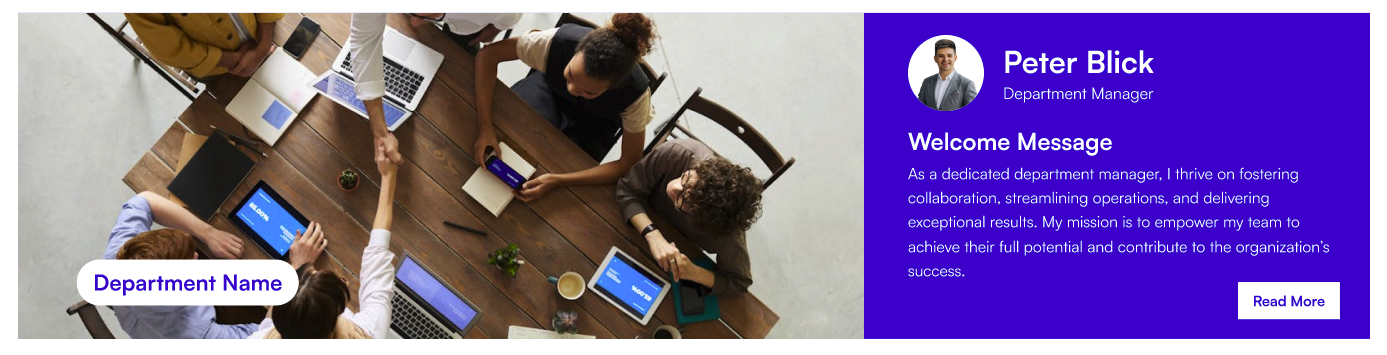
⚙️ General (Department Banner — Layout 1)
| Name | Purpose | Control Type |
|---|---|---|
| Department Title | The main heading shown on the banner | Text field |
| Title position | Moves the department name up or down on the banner | Slider (1–87) |
| Banner Height | Controls the overall height of the banner | Slider (250–550 px, step 50) |
| Announcement | Opens a panel to add or edit announcement entries (see table below) | Manage panel |
| Enable announcement section | Shows or hides the announcement strip beneath the banner | Toggle |
| Manager Message Header | Heading label above the manager message | Text field |
| Read More Text | Label for the "read more" link in the announcement | Text field |
Note: Change Background (below) is shared by both layouts — it is not part of this Layout 1 section specifically.
Announcement Panel Fields:
| Field | Purpose |
|---|---|
| Name | Pick a person from the organisation directory (people picker) |
| Role | The person's role or title |
| Message Description | Short message or announcement text to display |
📸 View General Settings Screenshots
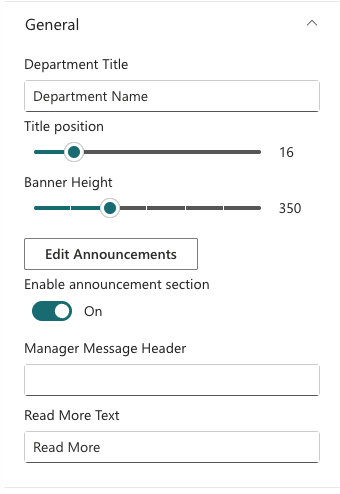
⚙️ General (Employee Resource Banner — Layout 2)
| Name | Purpose | Control Type |
|---|---|---|
| Department Title | Heading text shown on the banner | Text field |
| Announcement Title | Bold title for the announcement block | Text field |
| Announcement Description | Body text for the announcement (bound to the same field as the Layout 1 Manager Message Header) | Multi-line text field |
| Enable announcement section | Shows or hides the announcement block | Toggle |
Note: Change Background is documented below in Background Image Settings — it is shared by both layouts, not specific to Layout 2.
📸 View General Settings (Layout 2) Screenshots
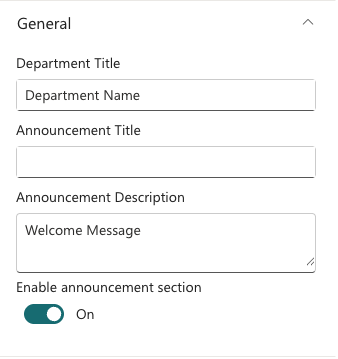
🖼️ Background Image
| Name | Purpose | Control Type |
|---|---|---|
| Change background | Select or upload the banner background image. Shared by both layouts. | Image picker |
📸 View Background Settings (Layout 2) Screenshots

📐 Layout
| Name | Purpose | Control Type |
|---|---|---|
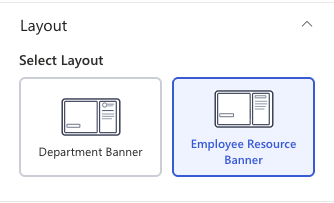
| Select Layout | Switch between Department Banner and Employee Resource Banner | Dropdown |
📸 View Layout Settings (Layout 2) Screenshots
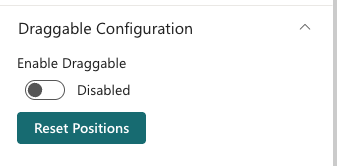
🤚🏻 Draggable Configuration
| Name | Purpose | Control Type |
|---|---|---|
| Enable Draggable | Allows content panels on the banner to be freely repositioned | Toggle |
| Reset Positions | Moves all draggable panels back to their default positions | Button |
📸 View Draggable Settings Screenshots
2. Featured News
Featured News
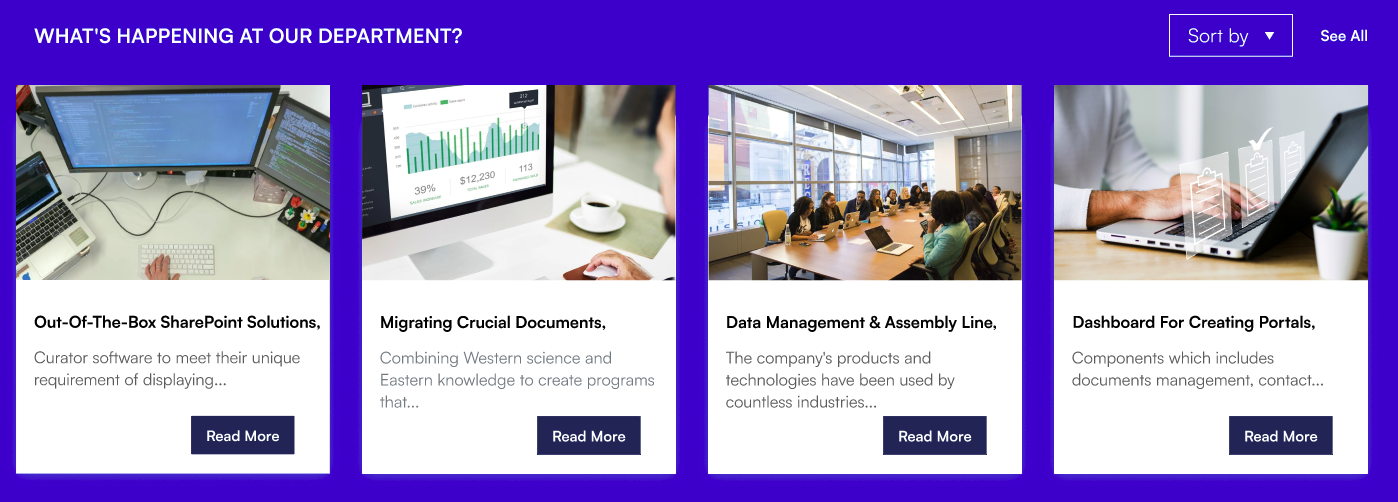
Featured News pulls news posts from one or more SharePoint sites and displays them in a chosen layout. You can filter by category, audience, or add RSS feeds from external sources.
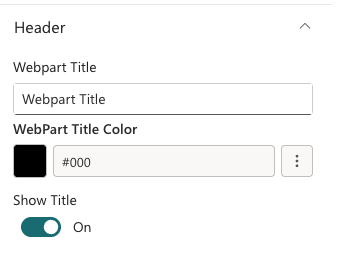
📌 Header
| Name | Purpose | Control Type |
|---|---|---|
| Show Header | Shows or hides the web part title bar. | Toggle |
| Webpart Title | The title shown above the news section. Visible only when Show Header is on. | Text field |
| WebPart Title Color | Colour for the title text. Visible only when Show Header is on. | Colour picker |
For best fit, the banner image resolution should be 1300×400px or 1300×450px (width × height).
📸 View Header Settings Screenshots
⚙️ General
| Name | Purpose | Control Type |
|---|---|---|
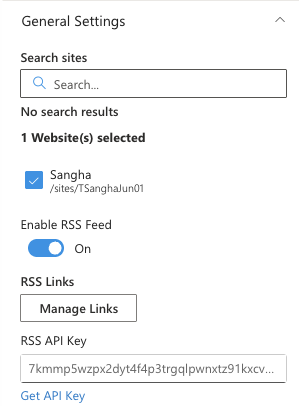
| Search Sites | Select one or more SharePoint sites to pull news from | Site picker |
| Enable RSS Feed | Enables news from external RSS feeds alongside SharePoint news | Toggle |
| RSS Links | Opens a panel to add RSS feed URLs (visible only when RSS Feed is enabled) | Manage panel |
| RSS API Key | API key for the RSS-to-JSON service (visible only when RSS Feed is enabled). A "Get API Key" link to rss2json.com is shown below the field. | Text field |
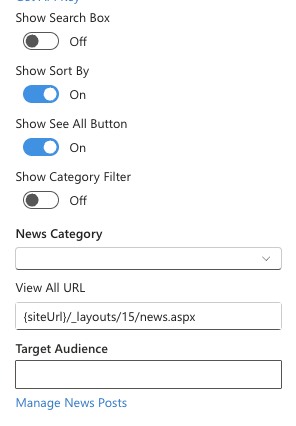
| Show Search Box | Shows a search bar above the news grid (visible only when Show Header is on) | Toggle |
| Show Sort By | Shows a sort dropdown above the news grid | Toggle |
| Show See All Button | Shows a "See All" link at the top of the web part (visible only when Show Header is on) | Toggle |
| View All URL | URL for the "See All" link (visible only when Show See All is on) | Text field |
| Show Category Filter | Shows tabs to filter news by category (visible only when the news site has choice columns) | Toggle |
| News Category | The choice column to use for category filtering | Dropdown |
| Apply Filters | Pre-filter news to show only selected category values (visible only once a News Category is selected) | Multi-select |
| Target Audience | Restrict news visibility to specific users or security groups | People picker |
| Manage News Posts | Opens the site's news library directly to add or edit posts | Link |
RSS Links Panel Fields:
| Field | Purpose |
|---|---|
| Title | A friendly label for the feed (optional) |
| RSS Link | The full URL of the RSS feed |
📸 View General Settings Screenshots
 |  |
📐 Layout
| Name | Purpose | Control Type |
|---|---|---|
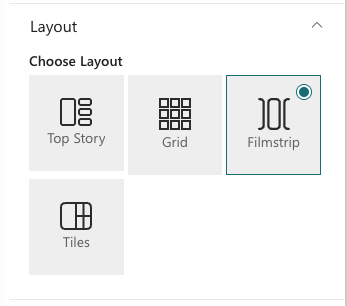
| Choose Layout | Sets the display style: Top Story, Grid, Filmstrip, or Tiles | Visual picker |
| Select Design | Switches between Standard (all-round border) and Accent Bar (top bar only) — visible only when Show Border (Appearance Settings) is on | Visual picker |
📸 View Layout Settings Screenshots
🎨 Appearance
| Name | Purpose | Control Type |
|---|---|---|
| Show Border | Adds a border around each news card | Toggle |
| Height | Controls the height of the news section. Top Story range: 350–1500 px. Grid range: 550–2000 px. Not shown for Filmstrip or Tiles. | Slider |
| Items to Show | Number of news items to display (Top Story layout only) | Slider (3–50) |
| Items to Show per Page | Number of items per page (Grid layout only) | Slider (4–16) |
| Items to Show per Slide | Number of items visible per carousel slide (Filmstrip layout only) | Slider (1–6) |
The Tiles layout has no additional Appearance fields beyond Show Border.
📸 View Appearance Settings Screenshots

🛠 Admin
| Name | Purpose | Control Type |
|---|---|---|
| Admin Menu | Shows or hides the admin section on the web part for specified users | Toggle |
| Select Admin | Pick people who can see the admin tools (visible only when Admin Menu is on) | People picker |
3. Quicklinks
Quicklinks
Quicklinks displays a grid of quick-access link tiles with icons. Editors add and arrange links in a manage panel, choose how each link opens, and customize colours to match the site theme.

📌 Header
| Name | Purpose | Control Type |
|---|---|---|
| Show Title | Shows or hides the web part title | Toggle |
| Title | The title shown above the links grid. Visible only when the title is on. | Text field |
| WebPart Title Color | Colour for the title text. Visible only when the title is on. | Colour picker |
📸 View Header Settings Screenshots
⚙️ General
| Name | Purpose | Control Type |
|---|---|---|
| Edit Quicklinks | Opens a panel to add, edit, reorder, and delete link tiles | Manage panel |
| See All URL | Optional URL for a "See All" link at the top of the web part | Text field |
Quicklinks Data Panel Fields:
| Field | Purpose |
|---|---|
| Title | The label shown on the tile |
| Link | The destination URL |
| Icon | Fabric icon shown on the tile (icon picker) |
| Open In | Whether the link opens in the same tab or a new tab |
📸 View General Settings Screenshots

📐 Layout
| Name | Purpose | Control Type |
|---|---|---|
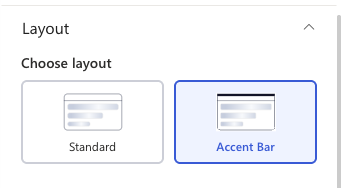
| Choose design | Switch between Standard (bordered tiles) and Accent Bar (icon boxes with top bar) | Visual picker |
📸 View Header Settings Screenshots
🎨 Appearance
| Name | Purpose | Control Type |
|---|---|---|
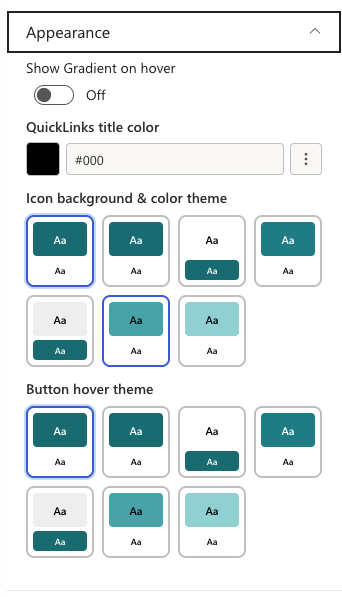
| Show Gradient on Hover | Adds a gradient effect when a user hovers over a tile | Toggle |
| QuickLinks title color | Picks a colour for the link label text | Colour picker |
| Background color | Background colour for the quicklinks tiles | Colour picker |
| Icon color | Picks colours for the icon box background and icon. Visible only in Accent Bar layout. | Theme colour dropdown |
| Background hover color | Picks the hover highlight colour from the site theme palette | Theme colour dropdown |
📸 View Appearance Settings Screenshots
4. Document Contents
Document Contents
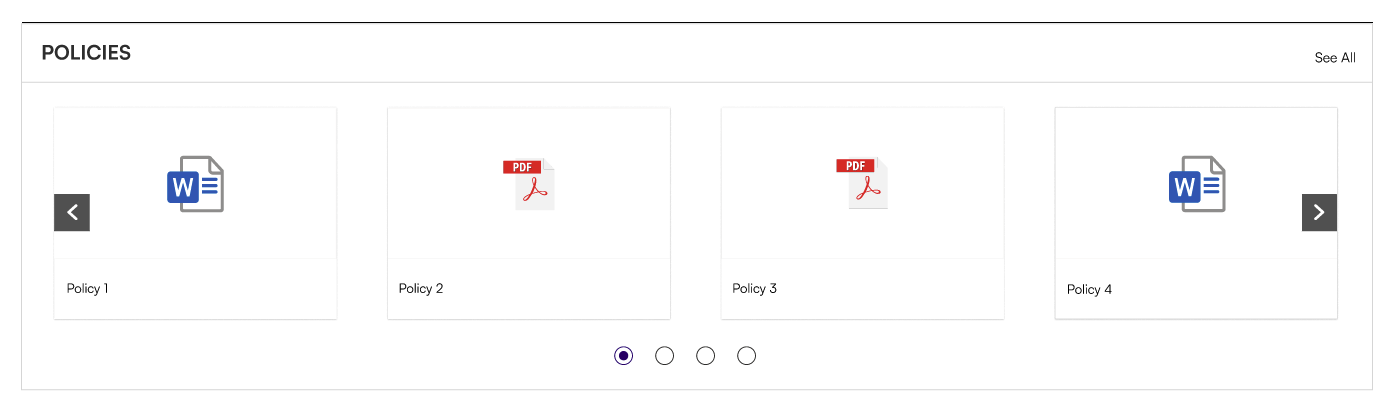
Document Contents surfaces files from a SharePoint document library in a chosen view. Editors can filter by folder, category, and control which file details are visible.
📌 Header
| Name | Purpose | Control Type |
|---|---|---|
| Show Webpart Title | Shows or hides the web part title | Toggle |
| Webpart Title | The title shown above the document list (visible only when Show Webpart Title is on) | Text field |
| WebPart Title Color | Colour for the title text (visible only when Show Webpart Title is on) | Colour picker |
📸 View Header Settings Screenshots
⚙️ General
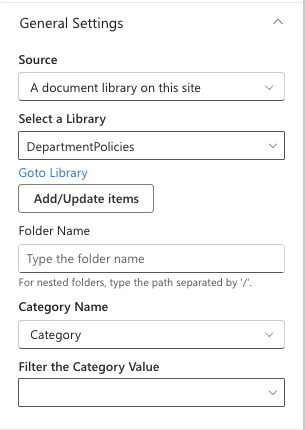
| Name | Purpose | Control Type |
|---|---|---|
| Source | Choose between showing all documents from this site or a specific library | Dropdown |
| Select a Library | Pick the document library to display (visible only when Source is "A document library") | Library picker |
| Goto Library | Opens the selected library directly to manage files (visible once a library is selected) | Link |
| Add/Update Items | Opens the library in a panel to add or update files (visible once a library is selected) | Button |
| Folder Name | Filter to show only files from a specific folder (type nested paths with /) | Text field |
| Include sub-folder files | Also shows files from folders inside the selected folder (visible only when Folder Name is set) | Toggle |
| Category Name | The choice column to use for filtering (auto-detected from the library) | Dropdown |
| Filter the Category Value | Pre-filter documents to show only selected category values (visible only when Source is "A document library" and category options exist) | Multi-select |
📸 View General Settings Screenshots
📐 Layout
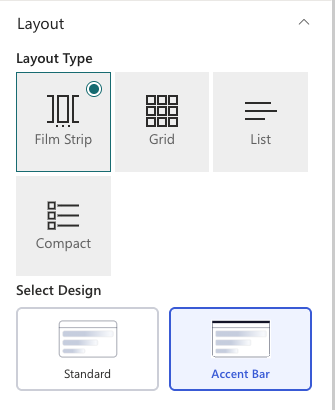
| Name | Purpose | Control Type |
|---|---|---|
| Layout Type | Display style: Film Strip, Grid, List, or Compact | Choice group |
| Select Design | Switch between Standard (all-round border) and Accent Bar (top bar only) | Visual picker |
📸 View Layout Settings Screenshots
🎨 Appearance
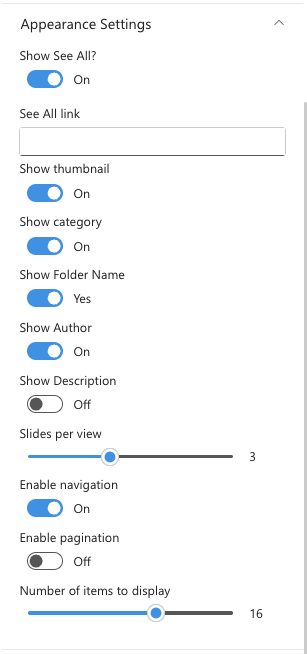
| Name | Purpose | Control Type |
|---|---|---|
| Show See All | Shows a "See All" link above the document list | Toggle |
| See All Link | URL for the "See All" link (visible only when Show See All is on) | Text field |
| Show Thumbnail | Shows a file thumbnail image (Film Strip and Grid layouts) | Toggle |
| Show Folder Name | Shows the folder the file is in (visible only when Show Thumbnail is on) | Toggle |
| Show Category | Shows the category tag on each file (visible only when the library has a category column) | Toggle |
| Show Author | Shows the file author's name (Film Strip and Grid layouts only) | Toggle |
| Show Description | Shows the file description (Film Strip and Grid layouts only) | Toggle |
| Slides per View | Number of files visible per slide (Film Strip layout only) | Slider (1–6) |
| Enable Navigation | Shows previous/next arrows on the carousel (Film Strip layout only) | Toggle |
| Enable Pagination | Shows page dots below the carousel (Film Strip layout only) | Toggle |
| Section Height | Controls the height of the document list (Compact layout only). Range: 300–600 px. | Slider |
| Number of Items to Display | Limits how many files are shown before the "See All" link appears (visible when Show See All is on) | Slider (1–25) |
📸 View Appearance Settings Screenshots
🛠 Admin
| Name | Purpose | Control Type |
|---|---|---|
| Show Admin | Shows or hides the admin view for specified users | Toggle |
| Admin Users | Pick people who can see the admin tools (visible only when Show Admin is on) | People picker |
5. Feedback
Feedback
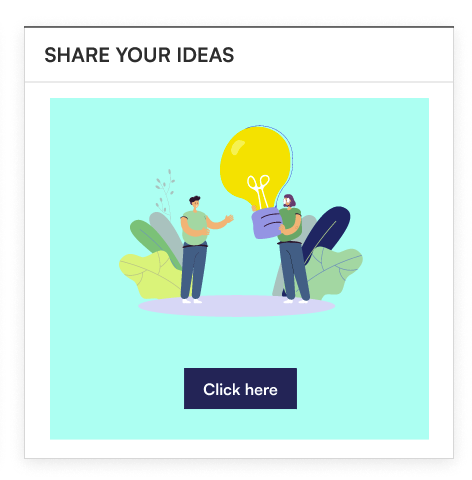
Feedback is a simple call-to-action banner with a background image and a button that directs employees to a feedback destination, such as a Microsoft Form or support mailbox.
📌 Header
| Name | Purpose | Control Type |
|---|---|---|
| Show Webpart Title | Shows or hides the web part title | Toggle |
| Webpart Title | The heading shown on the banner. Visible only when the title is on. | Text field |
| WebPart Title Color | Colour for the title text. Visible only when the title is on. | Colour picker |
⚙️ General
| Name | Purpose | Control Type |
|---|---|---|
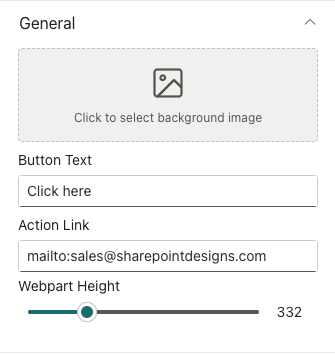
| Select Image | Background image for the banner | Image picker |
| Button Text | Label on the call-to-action button (e.g., "Share Your Ideas") | Text field |
| Action Link | URL the button navigates to (e.g., a Microsoft Form or email link) | Text field |
| Webpart Height | Controls the height of the banner | Slider (100–1000 px) |
📸 View General Settings Screenshots
📐 Layout
| Name | Purpose | Control Type |
|---|---|---|
| Choose layout | Switch between Standard and Accent Bar | Visual picker |
📸 View Layout Settings Screenshots
6. Goals
Goals
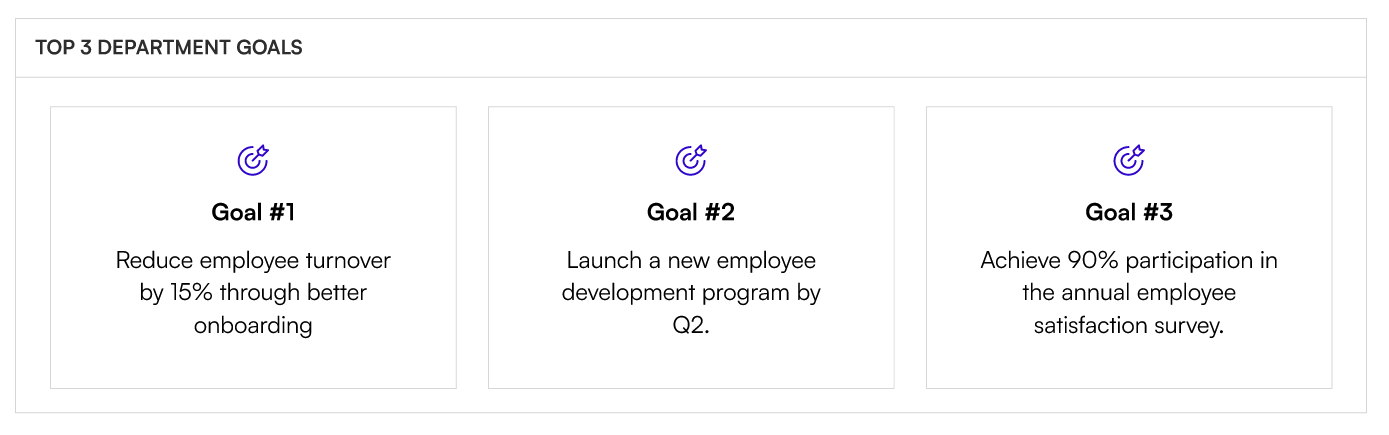
Goals displays your department or team's key objectives as visual cards with an icon, title, description, and optional link. Cards can be reordered in the manage panel.
📌 Header
| Name | Purpose | Control Type |
|---|---|---|
| Show Title | Shows or hides the web part title | Toggle |
| Webpart Title | The title shown above the goals grid. Visible only when the title is on. | Text field |
| WebPart Title Color | Colour for the title text. Visible only when the title is on. | Colour picker |
⚙️ General
| Name | Purpose | Control Type |
|---|---|---|
| Edit Goals | Opens a panel to add, edit, reorder, and delete goal cards | Manage panel |
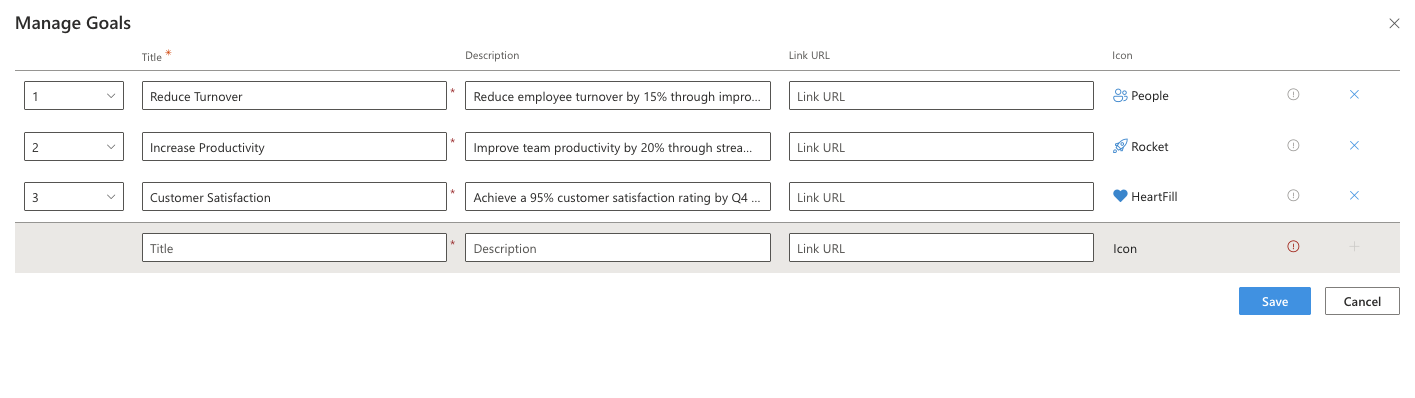
Goals Panel Fields:
| Field | Purpose |
|---|---|
| Title | The goal heading |
| Description | A short description of the goal |
| Link URL | Optional link to a related page or document |
| Icon | Fabric icon shown on the card (icon picker) |
📸 View General Settings Screenshots
📐 Layout
| Name | Purpose | Control Type |
|---|---|---|
| Select Layout | Switch between Standard and Accent Bar | Visual picker |
📸 View Layout Settings Screenshots
🎨 Appearance
| Name | Purpose | Control Type |
|---|---|---|
| Text Alignment | Aligns the card text: Left, Center, or Right | Dropdown |
| Show Full Description | Shows the complete description text without truncation | Toggle |
📸 View Appearance Settings Screenshots

7. Newsletter
Newsletter
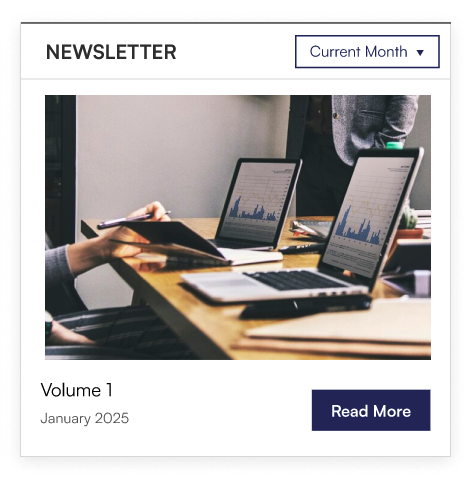
Newsletter pulls editions from a SharePoint document library and displays them as a gallery with cover images, titles, and a "Read More" link. A month filter lets employees browse past editions, and an optional carousel lets editors showcase multiple issues at once.
📌 Header
| Name | Purpose | Control Type |
|---|---|---|
| Show Header | Shows or hides the web part title bar | Toggle |
| Webpart Title | The title shown above the newsletter gallery. Visible only when Show Header is on. | Text field |
| WebPart Title Color | Colour for the title text. Visible only when Show Header is on. | Colour picker |
⚙️ General
| Name | Purpose | Control Type |
|---|---|---|
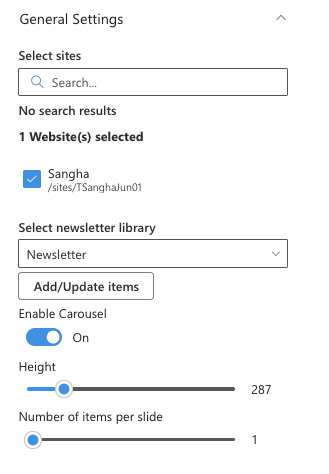
| Select sites | Pick the SharePoint site that hosts the newsletter library | Site picker |
| Select Newsletter Library | Pick the document library containing newsletter editions (visible only when a site is selected) | Library picker |
| Add/Update Items | Opens the library in a panel to upload or update newsletters (visible once a library is selected) | Button |
| Enable Carousel | Switches to a carousel display for multiple editions | Toggle |
| Height | Controls the height of the web part | Slider (200–700 px) |
| Number of items per slide | How many editions are visible per slide (visible only when Enable Carousel is on) | Slider (1–10) |
📸 View General Settings Screenshots
📐 Layout
| Name | Purpose | Control Type |
|---|---|---|
| Layout | Switch between Standard and Accent Bar | Dropdown |
📸 View General Settings Screenshots
🛠 Admin
This entire section is only shown when Show Header (Header Settings) is on.
| Name | Purpose | Control Type |
|---|---|---|
| Admin Menu | Shows or hides the admin section for specified users | Toggle |
| Select Admin | Pick people who can see the admin menu (visible only when Admin Menu is on) | People picker |
8. The Team
The Team
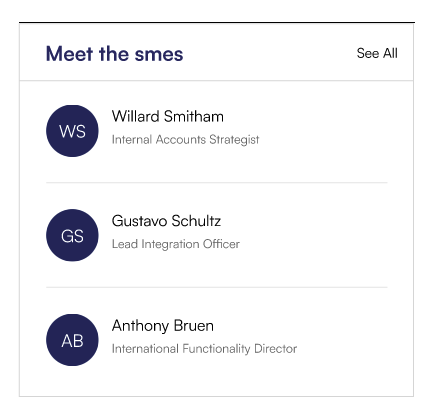
The Team displays a curated list of team members or subject-matter experts (SMEs) with their profile photo, role, and an optional custom name. Cards can be shown as a static grid or in a scrollable carousel.
📌 Header
| Name | Purpose | Control Type |
|---|---|---|
| Show Title | Shows or hides the web part title | Toggle |
| Webpart Title | The title shown above the team grid. Visible only when the title is on. | Text field |
| WebPart Title Color | Colour for the title text. Visible only when the title is on. | Colour picker |
| See All Link | URL for a "See All" or "Meet the Team" link. Visible only when the title is on. | Text field |
📸 View Header Settings Screenshots
⚙️ General
| Name | Purpose | Control Type |
|---|---|---|
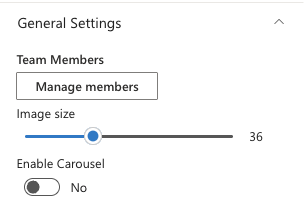
| Team Members | Opens a panel to add, edit, and reorder team member cards | Manage panel |
| Image size | Controls the size of profile photos | Slider (5–100) |
| Enable Carousel | Switches the display to a scrollable carousel | Toggle |
| Show Navigation | Shows previous/next arrows on the carousel (visible only when Enable Carousel is on) | Toggle |
| Items to Show per Slide | How many member cards are visible per slide (visible only when Enable Carousel is on) | Slider (1–10) |
Team Members Panel Fields:
| Field | Purpose |
|---|---|
| Person | Pick a person from the organisation directory (people picker) |
| Role | Optional role or title to display beneath the person's name |
| Custom Display Name | Optional alternative name to display instead of the person's Microsoft 365 display name |
📸 View General Settings Screenshots
📐 Layout
| Name | Purpose | Control Type |
|---|---|---|
| Select Layout | Switch between Standard and Accent Bar | Dropdown |
📸 View General Settings Screenshots