Configuration
Each web part is configured through its settings panel. To open it, click the web part while editing the page and click the pencil (edit) icon.
1. Employee Welcome
1. Employee Welcome
The Employee Welcome banner sits at the top of the onboarding page and creates a warm, branded first impression for new joiners.

📌 Header
| Name | Purpose | Control Type |
|---|---|---|
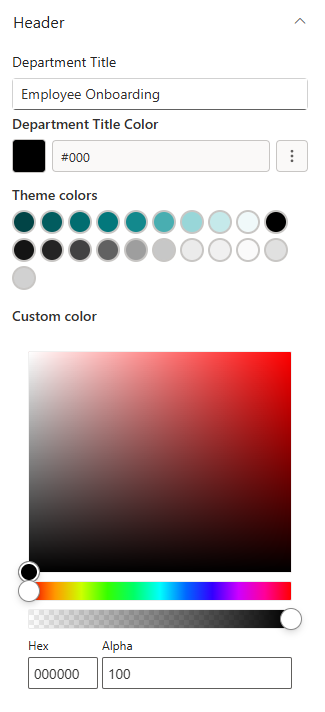
| Department Title | The main heading shown over the banner image (e.g., "Welcome to the Team!") | Text field |
| Text Color (Title in Banner) | Picks a colour for the title text from the site theme palette | Color picker |
📸 View Header Screenshots
📸 Background Image
| Name | Purpose | Control Type |
|---|---|---|
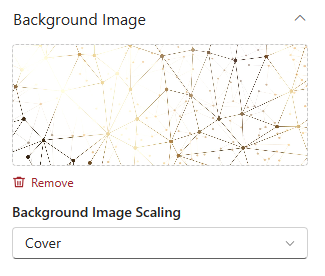
| Change Background | Select or upload the banner background image | Image picker |
| Background Image Scaling | How the background image fills the banner: Cover, Contain, Auto, Stretch, or Centre | Dropdown |
📸 View General Screenshots
🎨 Appearance
| Name | Purpose | Control Type |
|---|---|---|
| Title Position | Moves the title text up or down on the banner | Slider (1–87%) |
| Banner Height | Controls the overall height of the banner | Slider (250–550 px) |
📸 View Appearance Screenshots

2. Employee Onboarding
2. Employee Onboarding
Employee Onboarding connects to three SharePoint lists to deliver a personalised task checklist to each new employee. Admins can see all employees and their progress; employees see only their own tasks.
⚙️ General
| Name | Purpose | Control Type |
|---|---|---|
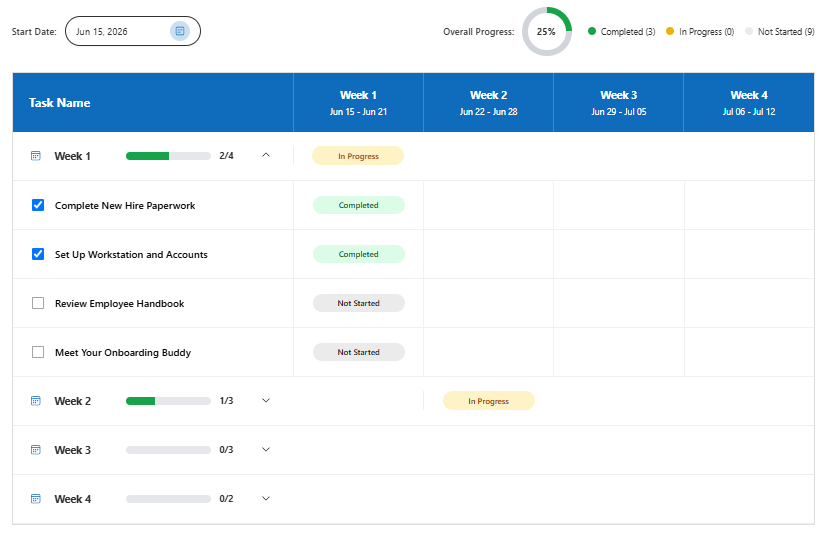
| Select Onboarding Task List | Pick the SharePoint list that holds individual onboarding task items | List picker |
| Select Employee Lists | Pick the SharePoint list that holds records of employees currently being onboarded | List picker |
| Select Onboarding Template | Pick the SharePoint list that defines the default task template assigned to new employees | List picker |
| View Mode | Switch between Admin view (all employees and their progress) and User view (personal checklist only) | Dropdown |
📸 View General Screenshots
View Mode Options:
| Option | Who Sees It | What They See |
|---|---|---|
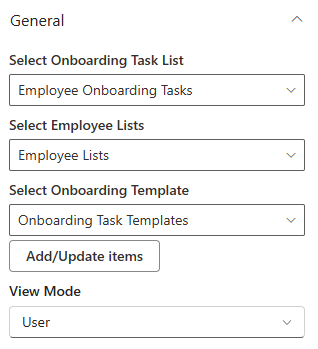
| Admin | HR / People Team | A full table of all employees currently being onboarded, with task progress per person |
| User | New Employees | Their own personal checklist of onboarding tasks to complete |
Tip: Set View Mode to Admin on the HR team's version of the page and User on the employee-facing version. You can use SharePoint page audiences or separate pages to show each view to the right people.