Configuration
Each web part is configured through its settings panel. To open it, click the web part while editing the page and click the pencil (edit) icon.
1. Document Welcome Banner
1. Document Welcome Banner
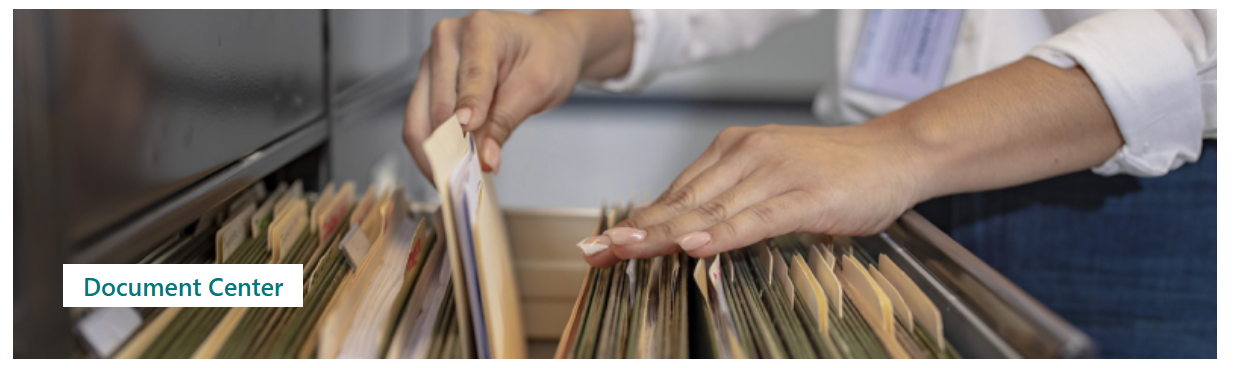
The Document Welcome Banner is the full-width hero at the top of the page. It displays a background image and a department or page title that identifies the document area to visitors.
📌 Header
| Name | Purpose | Control Type |
|---|---|---|
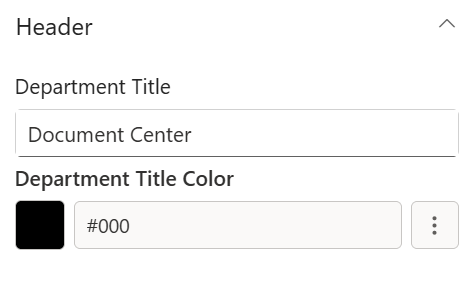
| Department Title | The main heading shown over the banner image | Text field |
| Department Title Color | Picks a colour for the title text from the site theme palette | Color picker |
📸 View Header Screenshots
📸 Background Image
| Name | Purpose | Control Type |
|---|---|---|
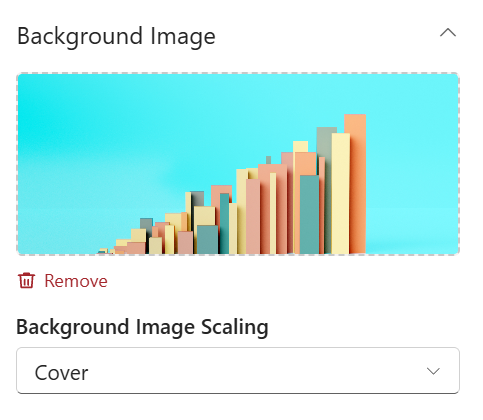
| Change Background | Select or upload the banner background image | Image picker |
| Background Image Scaling | How the background image fills the banner: Cover, Contain, Auto, Stretch, or Centre | Dropdown |
📸 View Background Image Screenshots
🎨 Appearance
| Name | Purpose | Control Type |
|---|---|---|
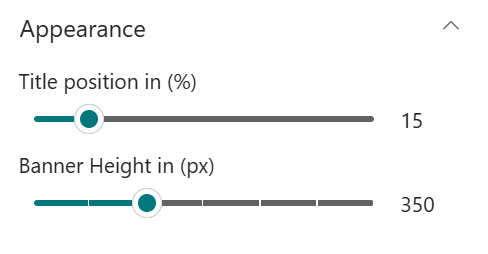
| Title Position | Moves the title text up or down on the banner | Slider (1–87%) |
| Banner Height | Controls the overall height of the banner | Slider (250–550 px) |
📸 View Appearance Screenshots
2. Document Contents
2. Document Contents
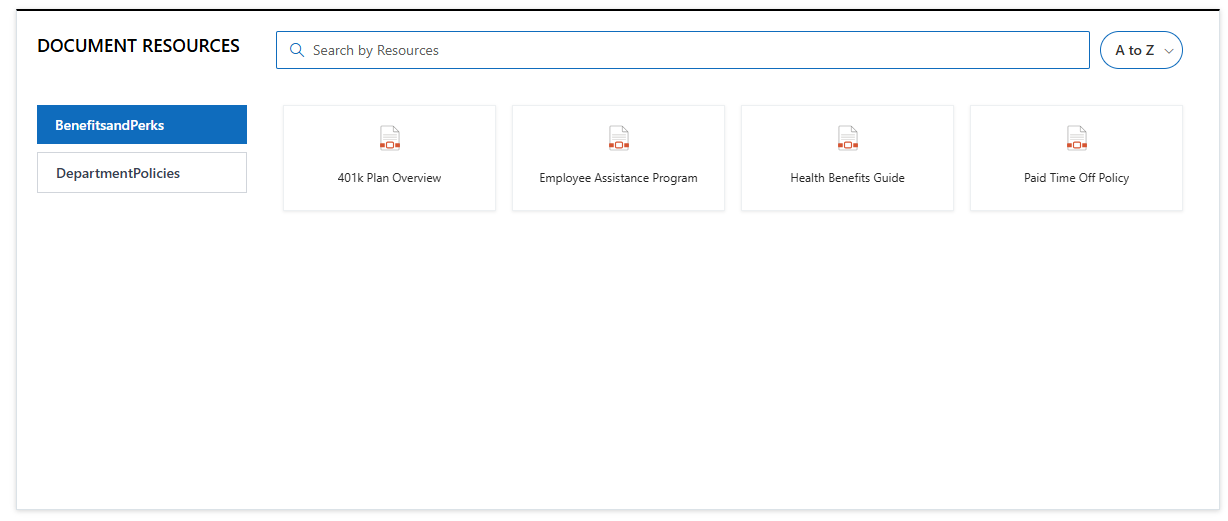
Document Contents is the main document browsing section. It pulls files from a SharePoint library and presents them in a chosen view, with optional filtering by folder, category, and file type.
📌 Header
| Name | Purpose | Control Type |
|---|---|---|
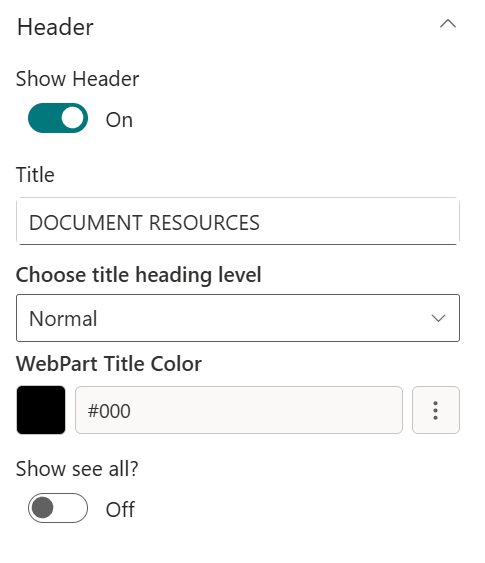
| Show Header | Shows or hides the web part title and "See All" link | Toggle |
| Title | Heading text shown above the document list (visible only when Show Header is on) | Text field |
| Heading Level | Font size for the title heading | Dropdown |
| Custom Font Size | Exact font size in pixels (visible only when Heading Level is set to Custom) | Slider (10–68 px) |
| Webpart Title Color | Picks a colour for the title from the site theme palette (visible only when a title is entered) | Color picker |
| Show See All | Shows a "See All" link that opens the full library (visible only when Source is "A document library") | Toggle |
📸 View Header Screenshots
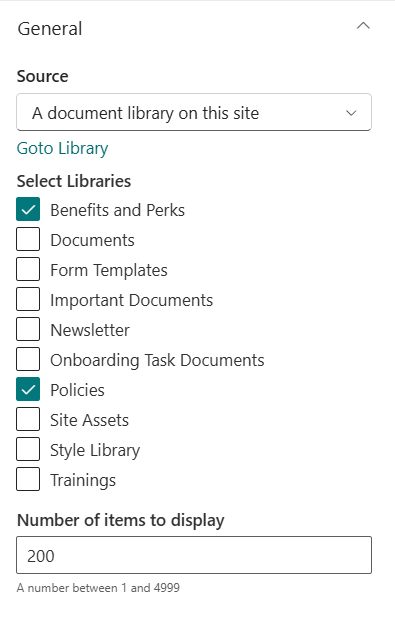
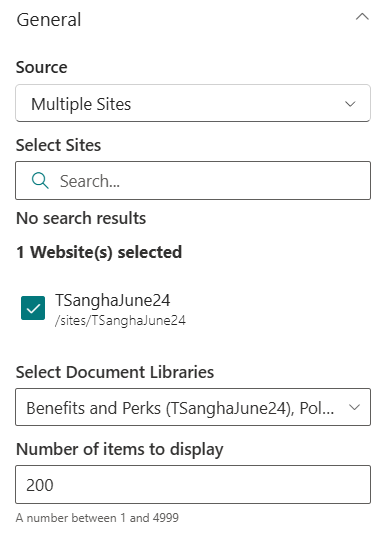
⚙️ General
| Name | Purpose | Control Type |
|---|---|---|
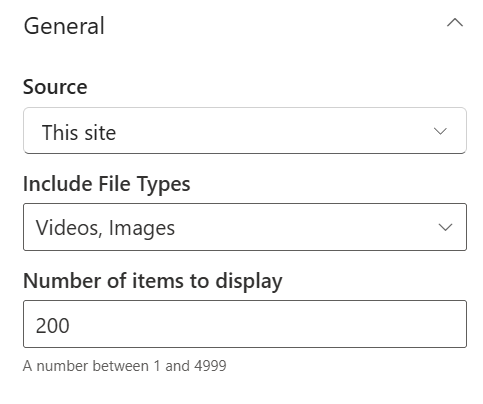
| Source | Choose between this site's documents, a specific library, or multiple sites | Dropdown |
| Select Sites | Pick SharePoint sites to aggregate documents from (visible only when Source is "Multiple Sites") | Site picker |
| Select Document Libraries | Choose which libraries to include from the selected sites (visible only when Source is "Multiple Sites") | Multi-select |
| Select Libraries | Pick the library to display (visible only when Source is "A document library") | Library picker |
| Goto Library | Opens the selected library directly to manage files | Link |
| Folder Name | Filter to show only files from a specific folder; use / for nested folders | Text field |
| Include Sub-Folder Files | Also shows files inside folders within the selected folder | Toggle |
| Category Name | The choice column to use for filtering (auto-detected from the library) | Dropdown |
| Filter the Category Value | Pre-filter documents to selected category values | Multi-select |
| Include File Types | Limit results to Videos or Images (visible only when Source is "This site") | Multi-select |
| Number of Items to Display | Maximum number of files to show (1–4999) | Number field |
📸 View General Screenshots
📐 Layout
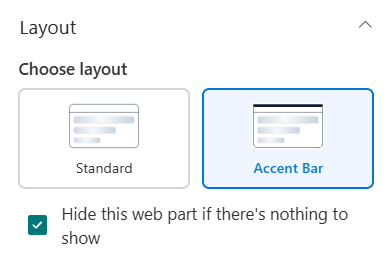
| Name | Purpose | Control Type |
|---|---|---|
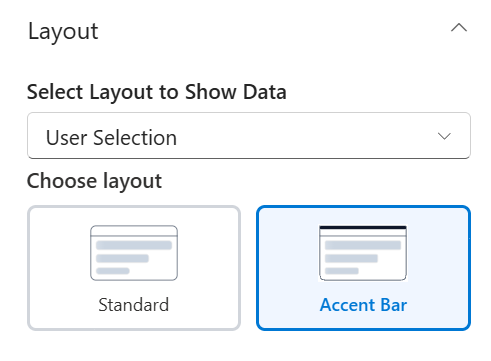
| Choose Layout | Switch between Standard (all-round border) and Accent Bar (top bar only) | Choicegroup |
| Hide This Web Part if Empty | Hides the entire web part when no documents match the current filter | Checkbox |
📸 View Layout Screenshots
🎨 Appearance
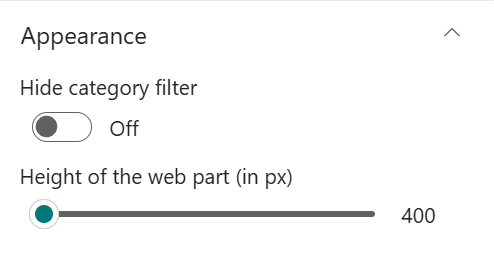
| Name | Purpose | Control Type |
|---|---|---|
| Hide Category Filter | Hides the category filter tabs visible to users (visible only when Source is "A document library") | Toggle |
| Height | Controls the height of the document section | Slider (400–2000 px) |
📸 View Appearance Screenshots
3. FAQs
3. FAQs
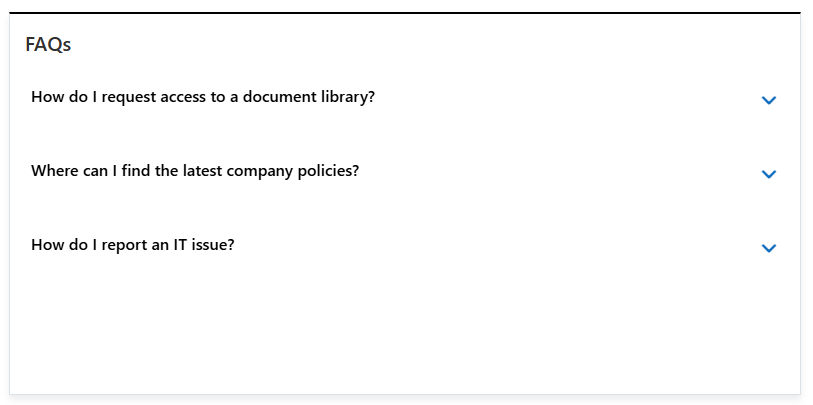
FAQs displays a list of questions and answers as an expandable accordion. Questions can come from a SharePoint list or be entered and managed directly within the web part settings.
📌 Header
| Name | Purpose | Control Type |
|---|---|---|
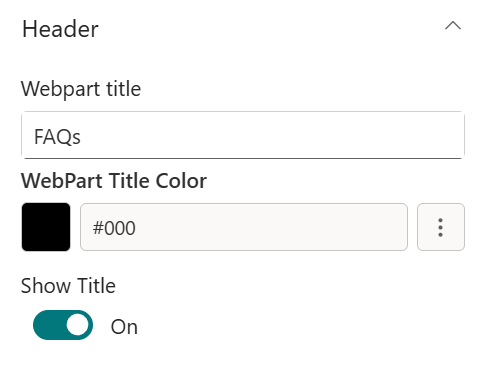
| Webpart Title | The heading shown above the FAQ list | Text field |
| Webpart Title Color | Picks a colour for the title from the site theme palette (visible only when a title is entered) | Color picker |
| Show Title | Toggle to turn on and off the webpart title | Toggle |
📸 View Header Screenshots
⚙️ General
| Name | Purpose | Control Type |
|---|---|---|
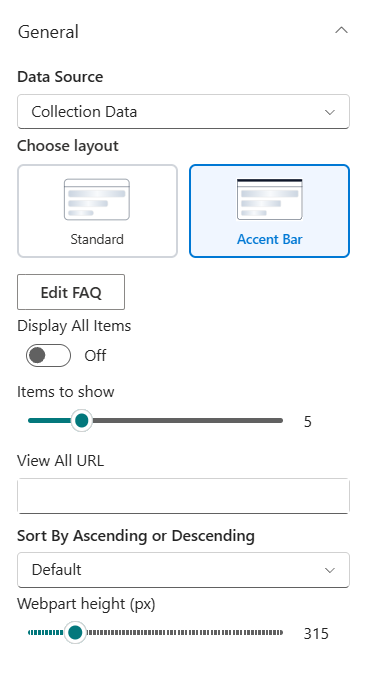
| Data Source | Choose whether FAQs come from a SharePoint list or are entered as custom items | Dropdown |
| Choose Layout | Switch between Standard and Accent Bar | Choicegroup |
| Select FAQs List | Pick the SharePoint list containing FAQ items (visible only when Layout is "Accordion (SharePoint list)") | List picker |
| Go to FAQ's List | Opens the selected list to add or edit items | Link |
| FAQ Items | Opens a panel to add, edit, and reorder FAQ entries (visible only when Layout is "Accordion (Custom items)") | Manage panel |
| Display All Items | Shows all FAQ items without a limit | Toggle |
| Items to Show | Limits how many FAQs are visible before a "View All" link appears (visible only when Display All Items is off) | Slider (1–20) |
| View All URL | URL for the "View All" link (visible only when Display All Items is off) | Text field |
| Sort By | Sort order for FAQ items: Default, Ascending, or Descending | Dropdown |
📸 View General Settings Screenshots
| FAQ Items Panel Fields: |
|---|
| Field | Purpose |
|---|---|
| Order | Order to show items in UI |
| Description | The answer text shown when the accordion row is expanded |
4. Contact
4. Contact
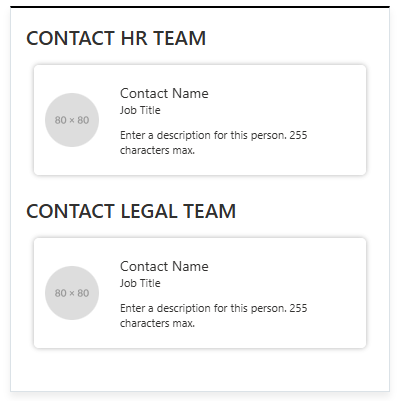
Contact displays one or more key contacts with their photo, name, role, and a description. Choose between showing two named contacts side by side or building a full multi-person collection.
📌 Header
| Name | Purpose | Control Type |
|---|---|---|
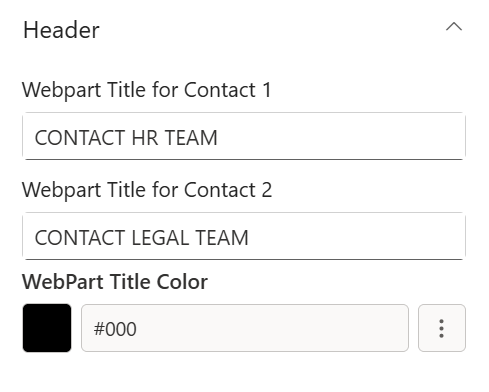
| Webpart Title for Contact 1 | Heading for the first contact card (visible only when Layout is "User Selection") | Text field |
| Webpart Title for Contact 2 | Heading for the second contact card (visible only when Layout is "User Selection") | Text field |
| Webpart Title Color | Picks a colour for the contact heading text from the site theme palette | Color picker |
📸 View Header Settings Screenshots
⚙️ General
| Name | Purpose | Control Type |
|---|---|---|
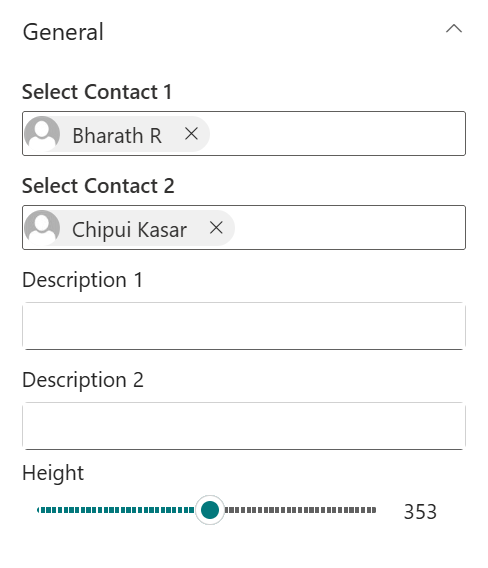
| Select Contact 1 | Pick the first contact from the organisation directory (visible only when Layout is "User Selection") | People picker |
| Select Contact 2 | Pick the second contact from the organisation directory (visible only when Layout is "User Selection") | People picker |
| Description 1 | Short text shown below the first contact's name (visible only when Layout is "User Selection") | Text field |
| Description 2 | Short text shown below the second contact's name (visible only when Layout is "User Selection") | Text field |
| Contact Collection | Opens a panel to add, edit, and manage multiple contact entries (visible only when Layout is "Collection View") | Manage panel |
| Height | Controls the height of the contact section | Slider (200–500 px) |
📸 View General Screenshots

Contact Collection Panel Fields:
| Field | Purpose |
|---|---|
| Title | The contact's display heading or section label |
| Description | A short description or message for this contact |
| Person | Pick a person from the organisation directory (people picker) |
| Job Title | The contact's job title |
📐 Layout
| Name | Purpose | Control Type |
|---|---|---|
| Select Layout to Show Data | Switch between User Selection (two named contacts) and Collection View (multiple entries) | Dropdown |
| Choose layout | Switch between Standard and Accent Bar | Choicegroup |
📸 View Layout Screenshots