Configuration
This page describes every setting available in the settings panel for both the Intelligence Dashboard and Personal Dashboard web parts. Open the settings panel for either web part by selecting it on a page and clicking the pencil (edit) icon on the left.
Intelligence Dashboard
Intelligence Dashboard
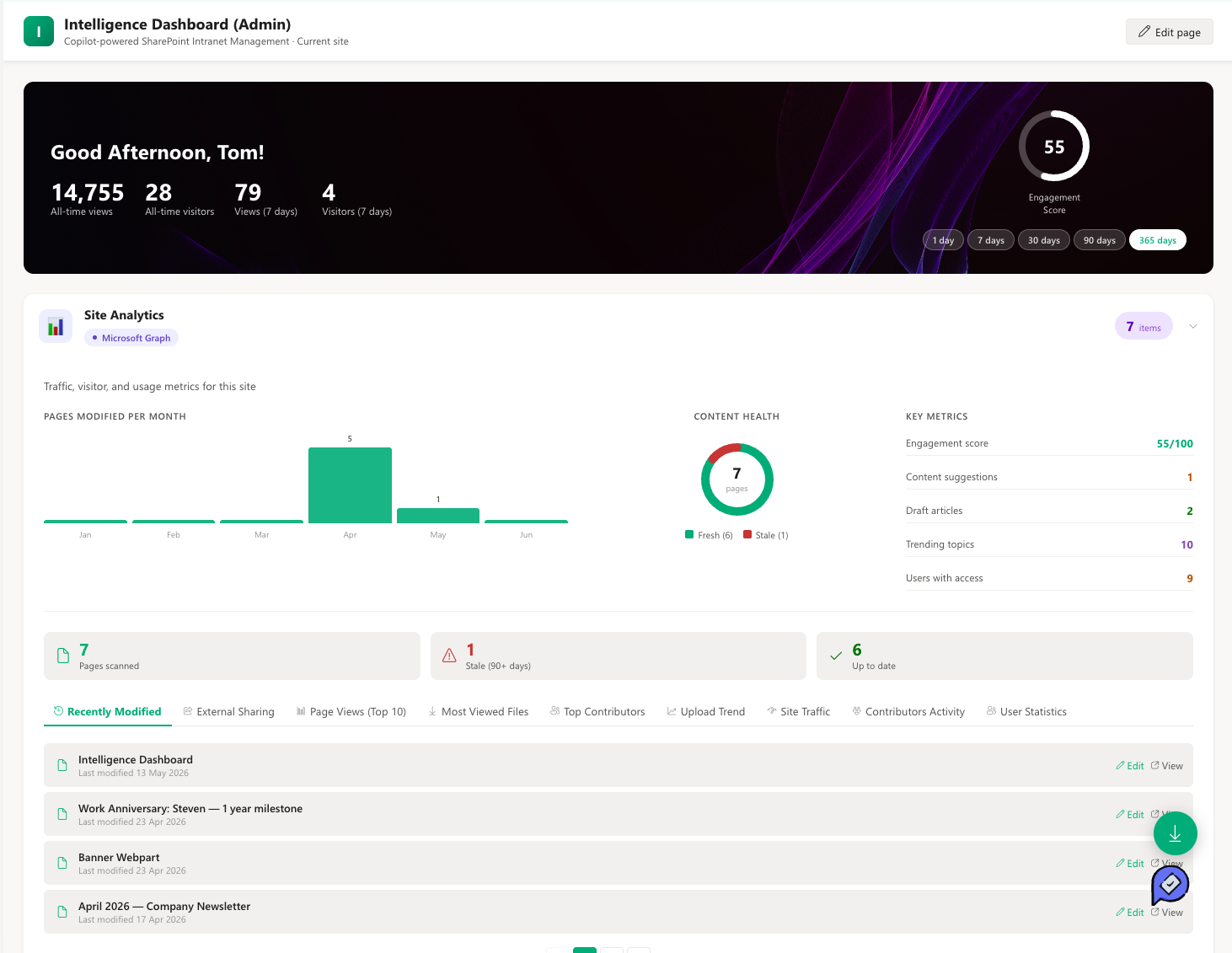
The Intelligence Dashboard is an AI-powered intranet analytics and content hub. It brings together site performance data, Microsoft Copilot-generated content suggestions, auto-drafted articles, and trending topics into one configurable dashboard. Administrators can customise the title, banner image, and which cards are visible — as well as the order in which those cards appear on the page.
📌 General Settings
| Name | Purpose | Control Type |
|---|---|---|
| Title | Sets the heading text displayed at the top of the web part on the page | Text field |
| Banner background image | Uploads a custom image displayed in the header area of the dashboard. Supports .png, .jpg, .jpeg, .gif, .webp, and .svg formats | File picker |
📸 View Intelligence Dashboard — General Settings Screenshots
⚙️ Card Order & Visibility Settings
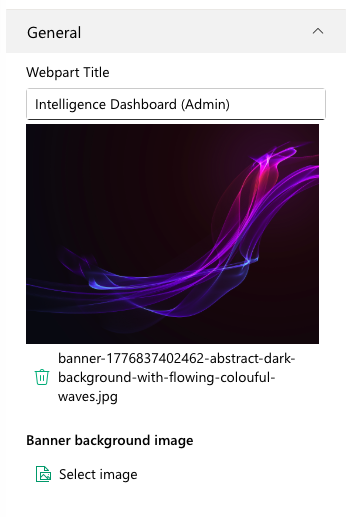
Controls which dashboard cards are visible and the order they appear in. All five cards are shown by default in a preset order.
| Name | Purpose | Control Type |
|---|---|---|
| Card list | Manages the visibility and display order of all five dashboard cards. Toggle any card on or off, and drag rows to reorder | Collection data |
Cards available in the list:
| Card Name | Default Label | What It Shows |
|---|---|---|
| Site Analytics | Site Analytics | Total page views, unique visitors, and a 7-day trend for the current site |
| Content Suggestions | Content Suggestions | AI-generated, actionable content recommendations with confidence ratings |
| Auto Generated Drafts | Auto Generated Drafts | Pre-written article drafts for birthdays, work anniversaries, and new joiners |
| New Content Recommendations | New Content Recommendations | Copilot-sourced topic briefs and outlines for new articles |
| Trending in Your Organisation | Trending in Your Organisation | The most-read and most-searched content across the organisation |
Note: The Card Order & Visibility panel is collapsed by default. Click the section header to expand it.
How to reorder: Drag any row in the list up or down to change the order cards appear on the dashboard. The top row becomes the first card displayed.
How to hide a card: Switch the Show toggle off for any card you do not want displayed. The card is hidden from visitors but stays in the list and can be re-enabled at any time.
📸 View Intelligence Dashboard — Card Order & Visibility Settings Screenshots
Intelligence Dashboard Cards
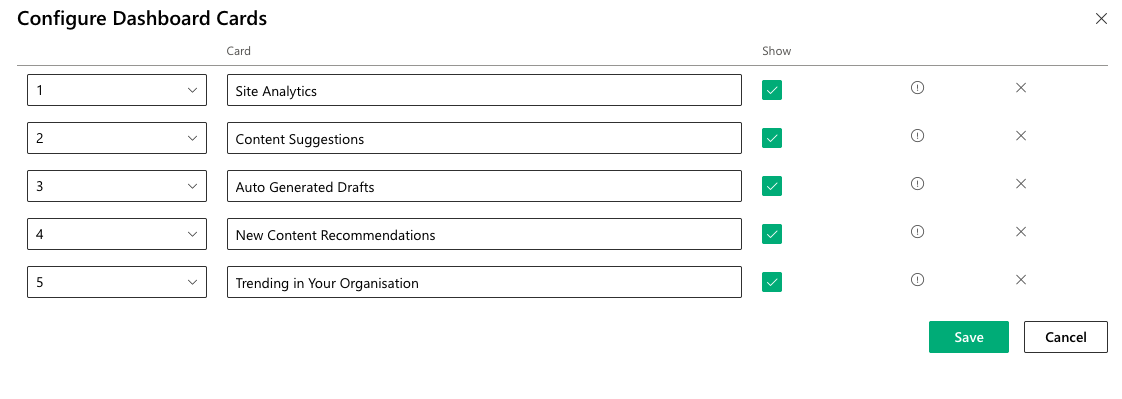
Site Analytics
Displays the site's performance metrics — total all-time page views, 7-day page views, total all-time unique visitors, and 7-day unique visitors. Data is read live from Microsoft Graph Analytics. Requires the Analytics.Read and Sites.Read.All Graph permissions to be approved.
Content Suggestions
Shows a list of AI-powered content recommendations generated by Microsoft Copilot. Each suggestion includes a title, description, confidence level (high, medium, or low), and an action button. Actions include drafting a new article, updating an existing page, starting an onboarding flow, creating a spotlight, or enabling a SharePoint feature. Requires Copilot licences and the Sites.Read.All permission.
Auto Generated Drafts
Displays pre-written article drafts automatically generated by Microsoft Copilot based on user data from Azure Active Directory. Draft types include birthday announcements, work anniversary articles, and new joiner welcome posts. Each draft can be reviewed and published directly to SharePoint from within the card. Requires the User.Read.All Graph permission.
New Content Recommendations
Shows Copilot-generated topic briefs and article outlines recommended for the site's audience. Each recommendation includes a title, description, category (trending, industry, or brief), content type, and relevance signals. Requires Copilot licences.
Trending in Your Organisation
Surfaces the content most actively read and searched across the organisation, pulled from Microsoft Graph Insights. Each trending item shows the title, resource type (document, page, etc.), and a link to view it. Requires the Files.Read.All Graph permission.
Personal Dashboard
Personal Dashboard
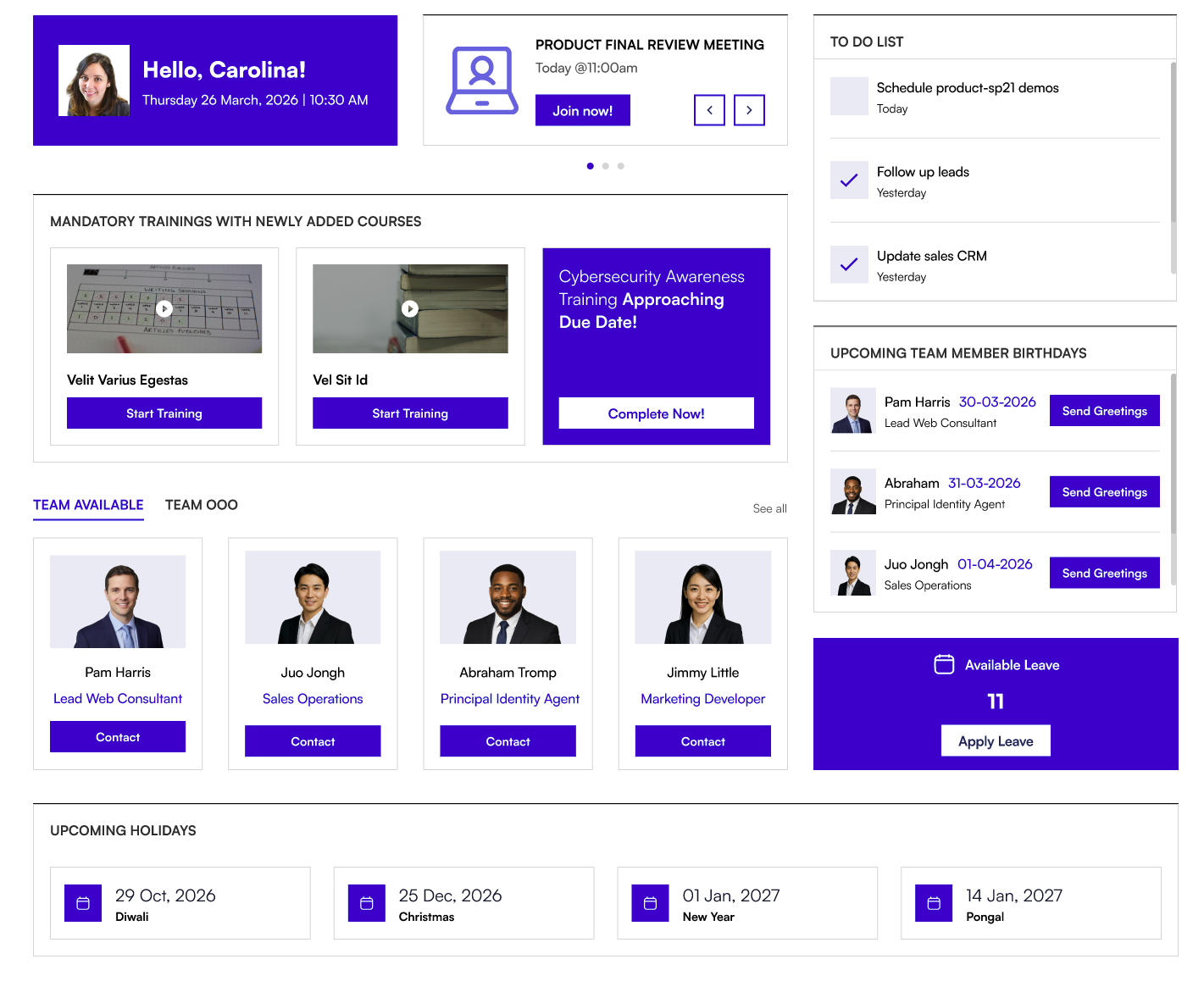
The Personal Dashboard is a personalised daily productivity hub that pulls live data from Microsoft 365 each time the page loads. It displays each employee's meetings, tasks, team presence, birthdays, holidays, and training assignments in a single, configurable view. Administrators can control the layout style, header visibility, birthday notification window, and holiday data source from the settings panel.
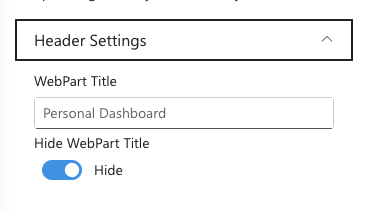
📌 Header Settings
Controls whether the web part title is shown and what it displays.
| Name | Purpose | Control Type |
|---|---|---|
| Title | Sets the heading text displayed at the top of the web part | Text field |
| Hide web part header | Toggles the title bar on or off. When switched on, the title is hidden and the cards fill the top of the web part — useful for a cleaner, app-like look | Toggle |
Note: This group is collapsed by default. Click the section header to expand it.
📸 View Personal Dashboard — Header Settings Screenshots
📐 Appearance Settings
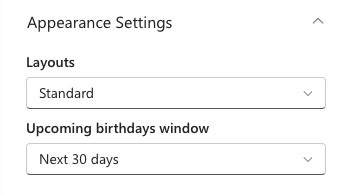
Controls the visual style of the dashboard and the birthday notification window.
| Name | Purpose | Control Type |
|---|---|---|
| Layout | Sets the overall visual style. Standard uses a clean card layout. Accent Bar adds a coloured bar to each card header for a more branded look | Dropdown |
| Birthday notification window | Sets how many days ahead the Birthdays card looks for upcoming team member birthdays. Default: 60 days | Dropdown |
Layout options:
| Option | Description |
|---|---|
| Standard | Clean, card-based layout |
| Accent Bar | Card layout with a coloured accent bar on each card header |
Birthday notification window options:
| Option | Days Ahead |
|---|---|
| Next 30 days | 30 |
| Next 60 days | 60 (Default) |
| Next 90 days | 90 |
Note: This group is collapsed by default. Click the section header to expand it.
📸 View Personal Dashboard — Appearance Settings Screenshots
⚙️ Holiday Source Settings
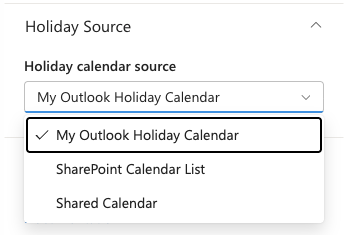
Controls where the Holidays card reads public holiday data from. Choose the option that matches your organisation's setup.
| Name | Purpose | Control Type |
|---|---|---|
| Holiday calendar source | Selects which calendar system to read public holidays from | Dropdown |
| SharePoint Holiday Calendar | Selects the SharePoint Events list to use as the holiday source. Visible only when Holiday calendar source is set to SharePoint Calendar List | List picker |
| Shared Calendar Owner Email | Sets the email address or UPN of the user who owns the shared holiday calendar. Visible only when Holiday calendar source is set to Shared Calendar | Text field |
Holiday calendar source options:
| Option | Description |
|---|---|
| My Outlook Holiday Calendar | Reads public holidays from the signed-in user's Outlook holiday calendar (Default) |
| SharePoint Calendar List | Reads holidays from a SharePoint Events list maintained by the organisation |
| Shared Calendar | Reads holidays from a shared calendar mailbox (e.g. holidays@contoso.com) |
When SharePoint Calendar List is selected: The SharePoint Holiday Calendar list picker appears. It only shows lists based on the SharePoint Events template (template 106). Select the list containing your public holidays.
When Shared Calendar is selected: The Shared Calendar Owner Email field appears. Enter the full email address or UPN of the account that owns the shared calendar.
Note: This group is collapsed by default. Click the section header to expand it.
📸 View Personal Dashboard — Holiday Source Settings Screenshots
⚙️ About
| Name | Purpose | Control Type |
|---|---|---|
| Documentation link | Opens the full documentation site for the Personal Dashboard | Link |
Personal Dashboard Cards
Welcome Card
A personalised greeting for the signed-in user. The greeting updates based on the time of day and uses the user's display name from their Microsoft 365 profile.
Today's Meetings
All calendar events for the current day from the user's Outlook calendar. For online meetings (Teams or other), a Join button appears so the user can join directly from the dashboard. Requires Calendars.Read.
My Tasks
The user's active Microsoft Planner tasks. Users can mark tasks as done by checking them off directly in the card and create new tasks by typing a title and optionally adding a due date. Requires Tasks.ReadWrite.
Team Availability
Shows the manager's direct reports with their real-time presence status. Each person has a colour-coded indicator.
| Status | What It Means |
|---|---|
| Available | Online and free |
| Out of Office | Out of office |
Requires User.Read.All and Presence.Read.All. Only appears for users who have direct reports set in Azure Active Directory.
Upcoming Birthdays
Team members whose birthdays fall within the configured notification window. Each entry shows the person's name, job title, photo, and days until their birthday. Requires User.Read.All. Birthday dates must be populated in Azure Active Directory user profiles.
Public Holidays
Upcoming public holidays from the selected holiday source. Each entry shows the holiday name and date. Source is configured in the Holiday Source settings group.
My Training
Outstanding Viva Learning assignments for the signed-in user. Each entry shows the course title, thumbnail, due date, and an Open link. Urgent courses are highlighted. Requires all four Learning* Graph permissions and Viva Learning enabled for the tenant.