Installation
⚙️ Installation Instructions
-
Upload the
spd-healthcare-03.sppkgfile to your App Catalog -
Navigate to your modern SharePoint site.
-
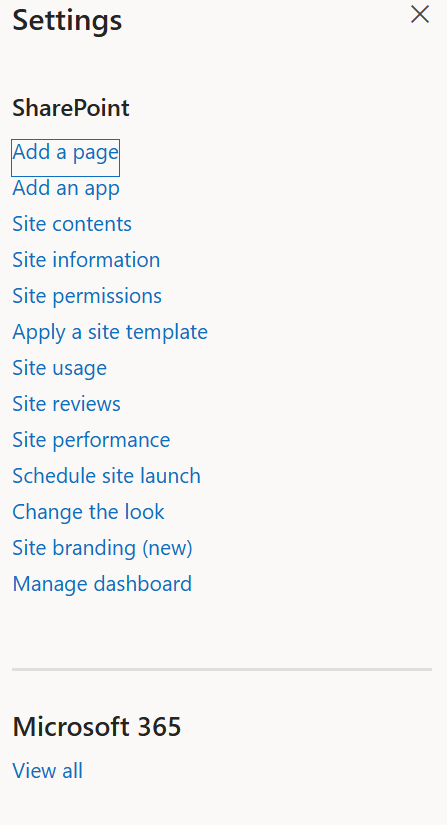
Click the Settings (gear) icon → Select “Add an app”
-
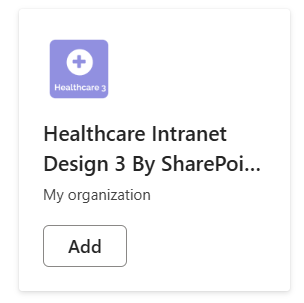
Choose Healthcare 03 by SharePoint Designs
-
Click Add
-
After installation, go to Site Contents to confirm it's added to the site.
🧪 Testing Instructions
🧪 Steps to Set Up and Apply Template
Follow the steps below to configure your SharePoint site using the setup wizard:
🔹 Step 1: Welcome Screen
-
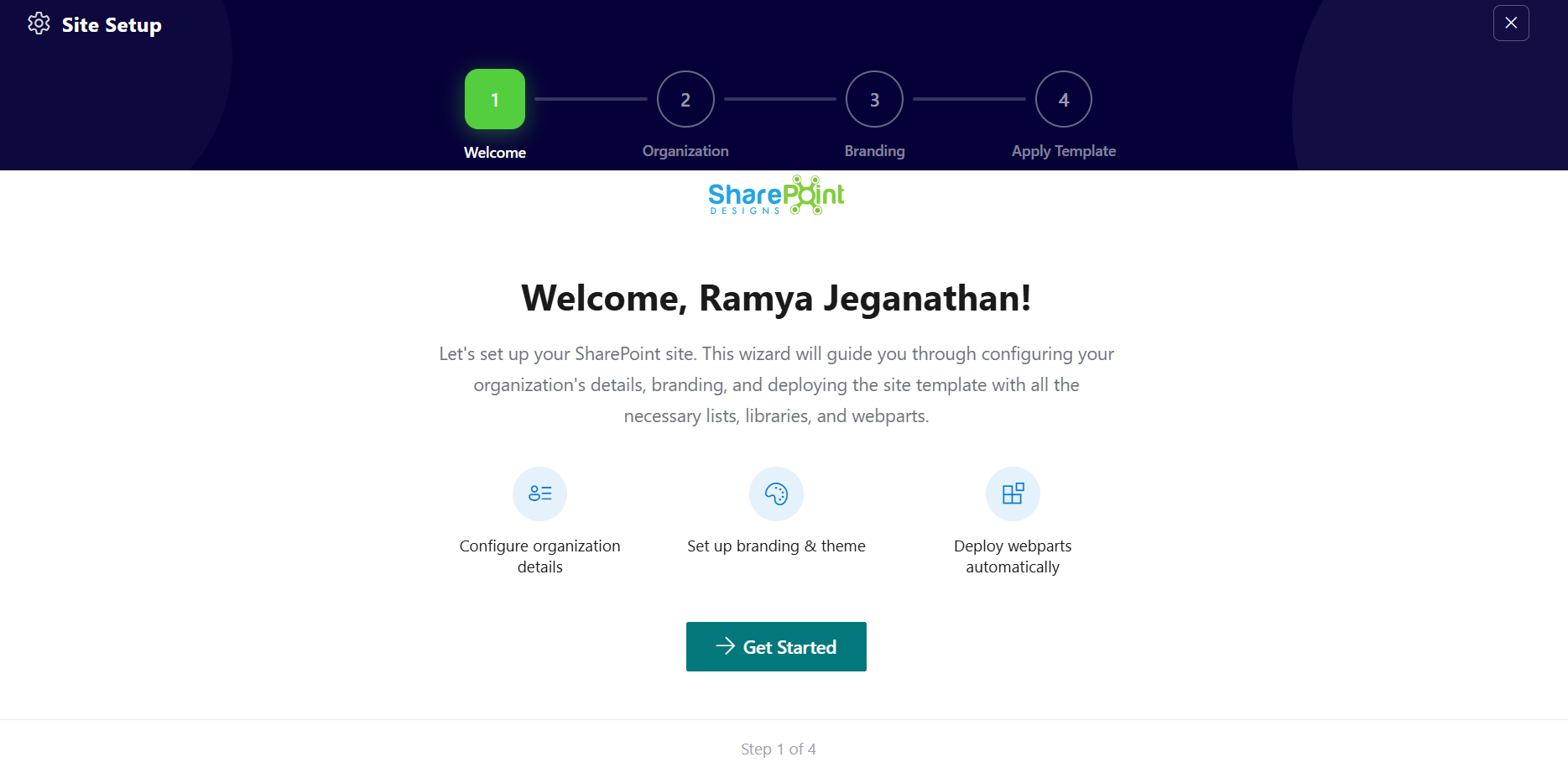
Open the Site Setup panel from the top suite bar.
-
You will land on the Welcome screen.
-
This screen provides an overview of what will be configured:
- Organization details
- Branding and theme
- Automatic deployment of web parts
-
Click Get Started to proceed.
📸 View Apply template Screenshots
🔹 Step 2: Organization Details
-
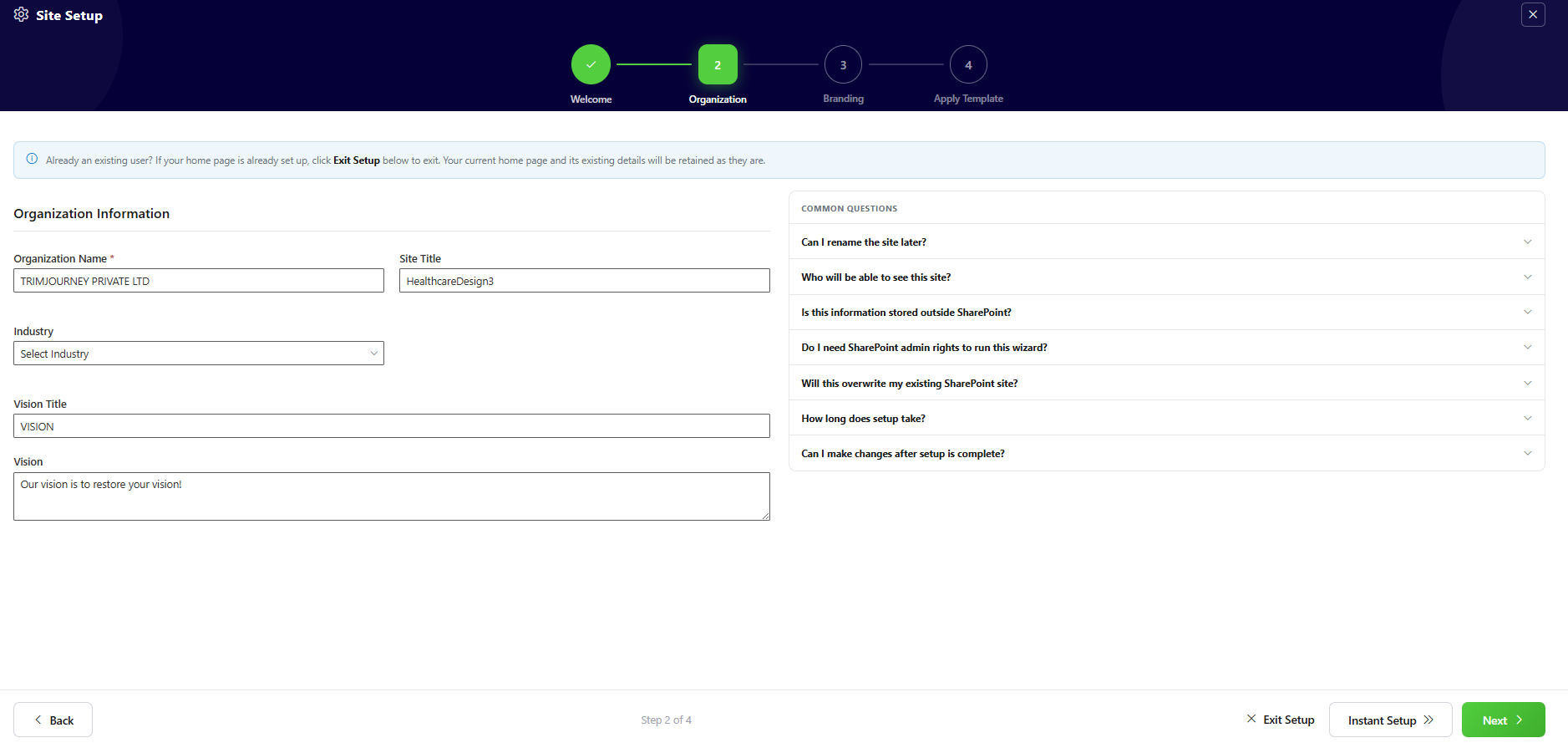
Enter the required Contact Information:
- First Name
- Last Name
-
Fill in Company Information:
- Company Name
- Industry
- Number of Employees
-
Provide additional details:
- Vision
- Mission
-
Click Next to continue.
📸 View Apply Template Screenshots
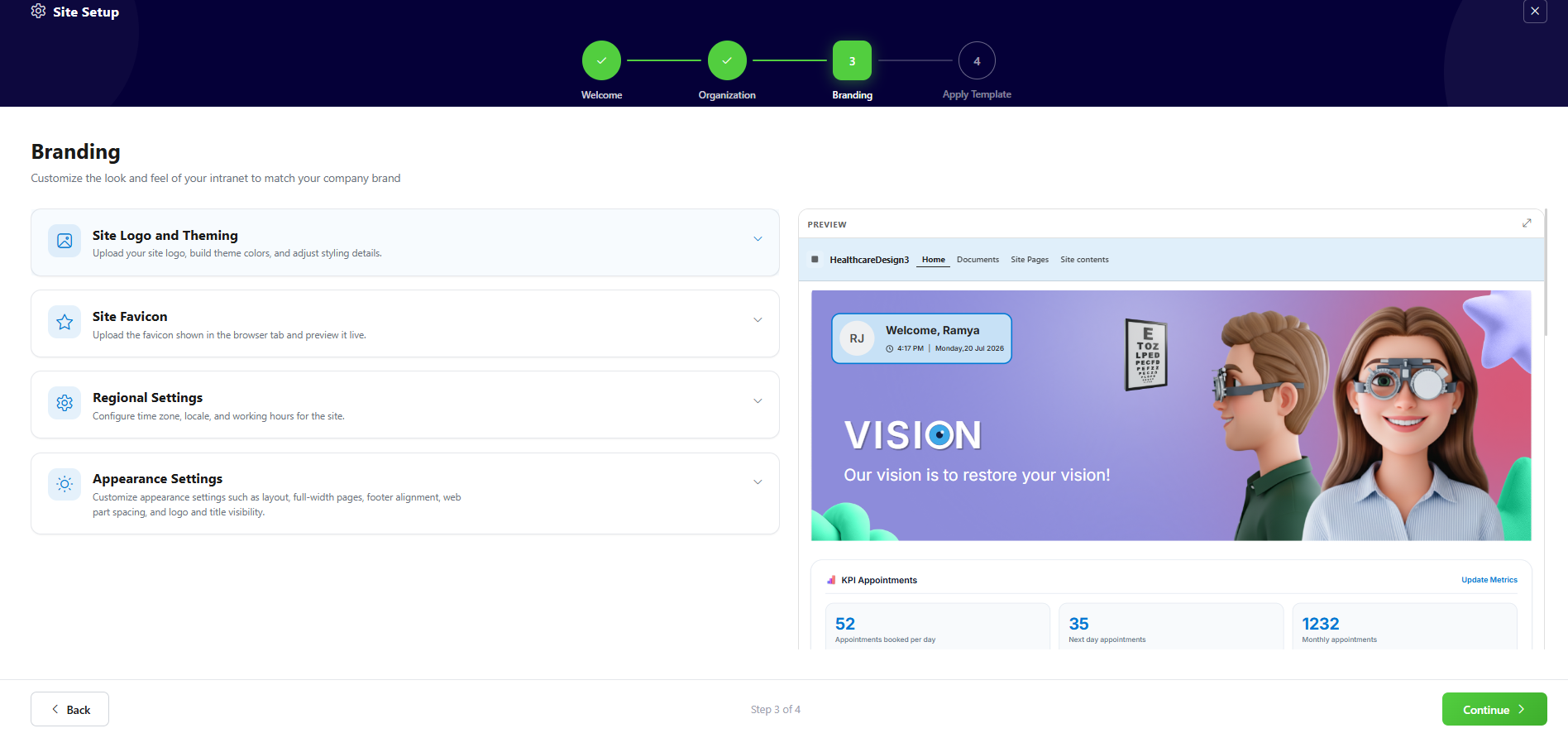
🔹 Step 3: Branding
-
Upload your organization branding:
- Company Logo
- Favicon
-
Configure regional settings if required:
- Click Open Regional Settings
-
Apply site theme:
- Click Open Brand Center to choose or create a theme
-
Once done, click Review & Apply
📸 View Apply Template Screenshots
🔹 Step 4: Review Configuration
-
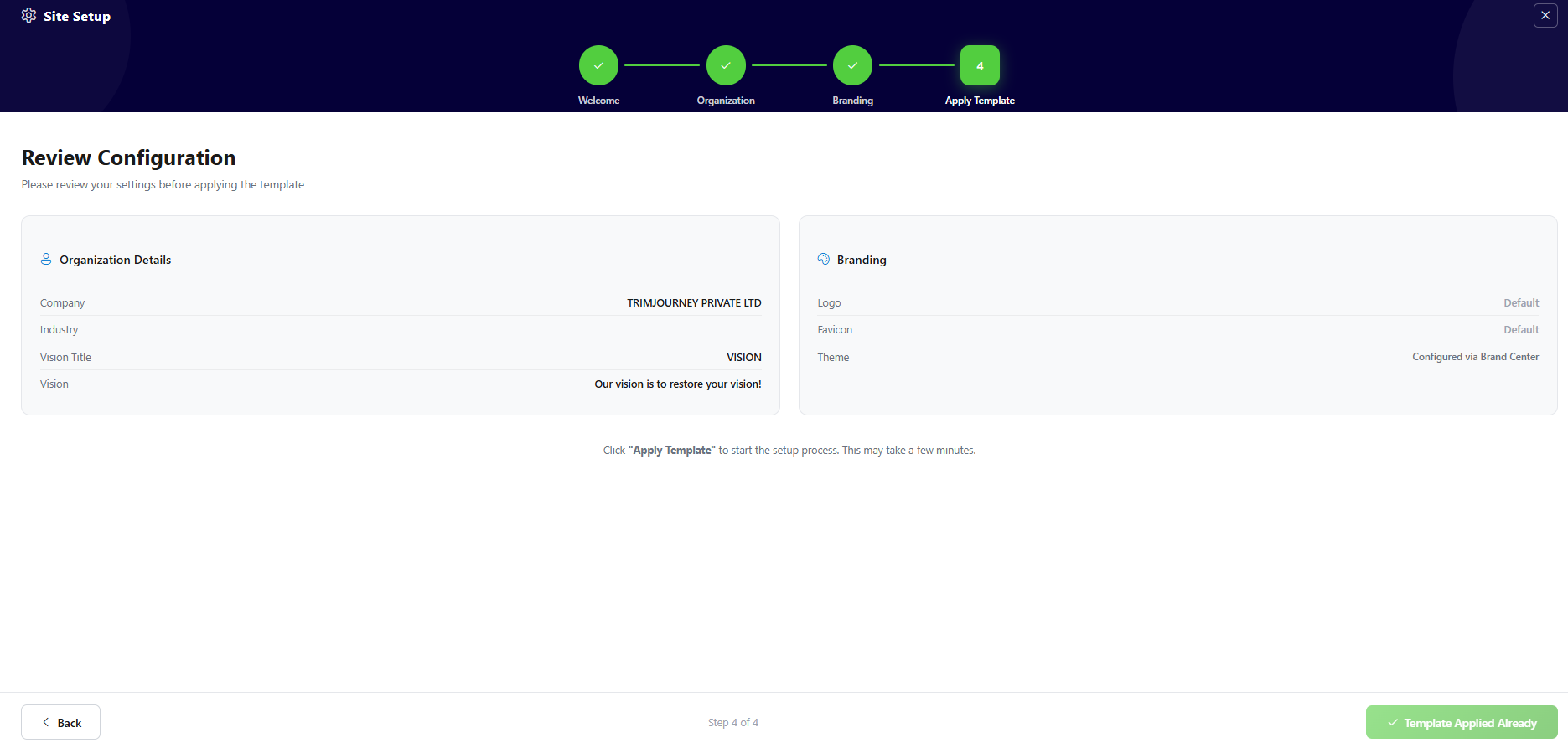
Review all the configured details:
- Organization Details
- Branding Settings
-
Check the What will be created section:
- SharePoint Lists
- Document Libraries
- Home Page
- Branding Assets
-
Click Apply Template to start the setup process.
📸 View Apply Template Screenshots
🔹 Step 5: Setup Completion
-
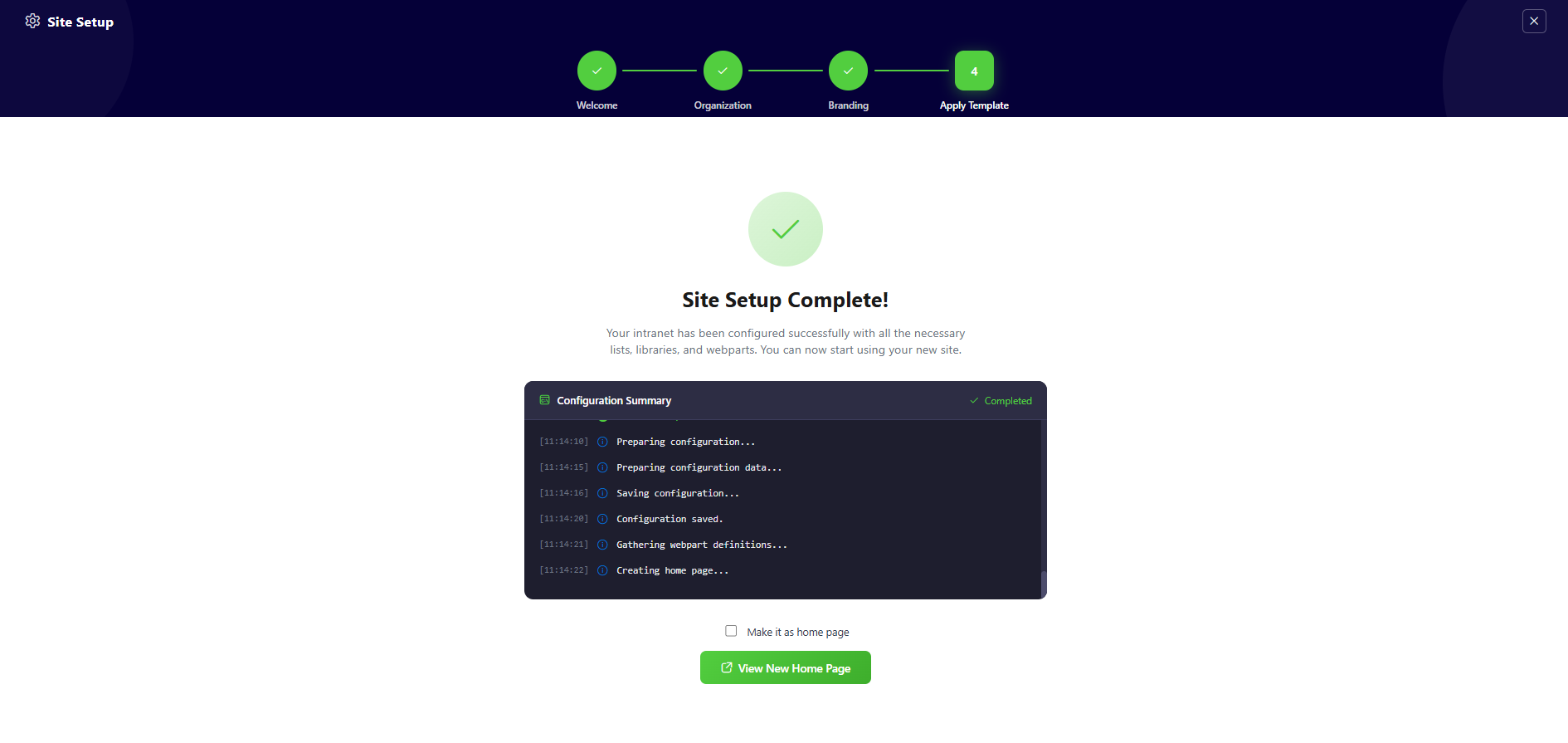
The system will begin configuring your site and display a Configuration Summary.
-
You can track:
- List creation progress
- Library setup
- Web part deployment
-
Once completed, a success message will appear:
“Site Setup Complete!” -
Click View New Home Page to open your newly created site.
📸 View Apply Template Screenshots
💡 Note:
- If any step fails during setup, it will be highlighted in the configuration summary.
- Do not refresh the page while the setup is in progress.
🔑 Activating 30 Days Free Trial
License Activation Steps
| Step | Action | Details / Notes |
|---|---|---|
| 1 | Go to the app page | Navigate to the SharePoint page where the app is installed |
| 2 | Open activation panel | If the subscription is pending, a Buy Now button will be visible |
| 3 | Launch activation dialog | Click Buy Now to open the purchase dialog |
| 4 | Purchase the license | Complete the payment process |
| 5 | Configure SaaS account | After purchase, click Configure your SaaS account |
| 6 | Subscribe to app | On the landing page, click Subscribe |
🛒 Purchase License & Trial Information
- Purchasing the license automatically activates a 30-day free trial.
- No charges apply during the trial period.
- Once activation is completed successfully, the app is fully available for use.
✅ Expected Behaviour
The following resources are provisioned upon applying the Home template:
- 📄 Appointments (List)
- 📄 Quick Links (List)
- 📄 Anniversaries (List)
- 📄 Mindfullness (List)
- 📄 Events (List)
- 🖼️ Training Videos (Library)
- 📄 Facilities (List)
Mock data is also auto-added for:
- Appointments
- Quicklinks
- Anniversaries
- Mindfullness
- Training Videos
- Facilities
No manual configuration required after clicking the Apply template button.
🧹 Uninstall Guide
Follow the steps below to uninstall the Healthcare Intranet Design 3 by SharePoint Designs app from your SharePoint site:
- Go to your SharePoint site and click on Site Contents from the left side navigation or the settings menu.
- Find Healthcare Intranet Design 3 by SharePoint Designs in the list of installed apps.
- Click the three dots (···) next to the app name and select "Remove".
- If prompted to switch to the Classic Experience, follow the prompt to proceed.
- In the Classic Experience, hover over the app again, click the three dots (···), and then click Remove to finalize the uninstallation.
🛠️ Troubleshooting Common Issues
⚠️ Issue: Web Part Not Displaying Correctly
Solution: Ensure that the web part has been added to a modern SharePoint page and that the page has been republished. Check for any missing permissions that might be required for the web part to function correctly.
🗃️ Issue: Lists/Library Not Created
Solution: Verify that the "Apply template" button was clicked after adding the "Healthcare 03 Setup" web part. If the lists/Library are still not created, delete the page and reapply the design.
📝 Issue: Missing Demo Items
Solution: Check if the lists items are present in the Site Contents. If the lists are empty, manually add demo items or reapply the design.
🌟 Best Practices
🔁 Regular Updates
- Keep Content Fresh: Regularly update the content on your SharePoint site to keep it relevant and engaging.
- Monitor Performance: Regularly check the performance of your SharePoint site and make necessary adjustments to improve speed and user experience.
🎓 User Training
- Provide Training: Offer training sessions for users to help them understand how to use the SharePoint site effectively.
- Create Documentation: Develop comprehensive documentation to guide users on how to navigate and use the site.
🔐 Security Measures
- Implement Security Protocols: Ensure that proper security measures are in place to protect sensitive information.
- Regular Audits: Conduct regular security audits to identify and address potential vulnerabilities.
🗣️ User Feedback
- Collect Feedback: Regularly collect feedback from users to understand their needs and improve the site accordingly.
- Act on Feedback: Implement changes based on user feedback to enhance the overall user experience.
🤝 Collaboration
- Encourage Collaboration: Promote collaboration among team members by providing tools and features that facilitate communication and teamwork.
- Use SharePoint Features: Utilize SharePoint features such as document libraries, lists, and workflows to streamline collaboration and improve productivity.
🧑💼 User Permissions
| Role | Permissions |
|---|---|
| Owners | Full control — manage app, lists, license, settings. |
| Members | Contribute content such as links, documents, events. |
| Visitors | Read-only access. General audience viewing. |
Stick to the least privilege principle. Review permissions regularly.
🆘 Support
Please contact SharePoint Designs 🌐 www.sharepointdesigns.com 📧 support@sharepointdesigns.com